Curved UI
This tutorial introduces how to use FairyGUI to make curved UI. The principle is to capture the target interface onto a RenderTexture, and then paste this Texture onto a surface model. Click detection is done using MeshCollider. It can also be seen from this principle that FairyGUI not only supports curved UI, but also any shape UI, as long as the corresponding model is provided.
Making curved UI
First put the prepared surface model into the scene:
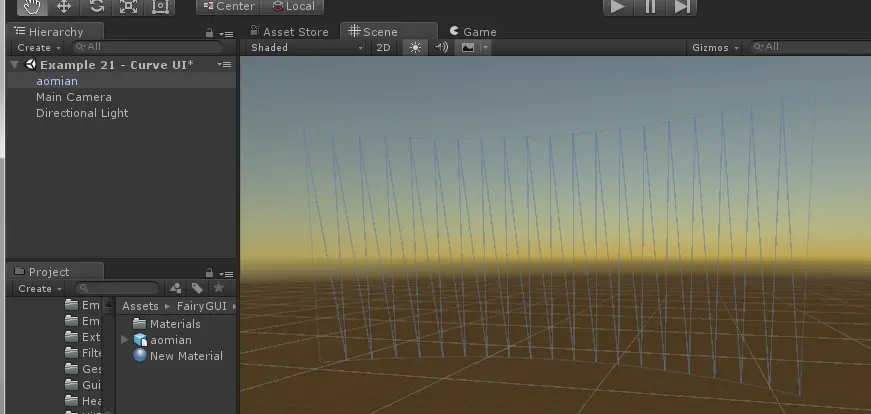
Hanging a GameObject on the modelUIPainterComponent, the "Mesh Collider" component and "Mesh Renderer" component should be automatically added at this time.
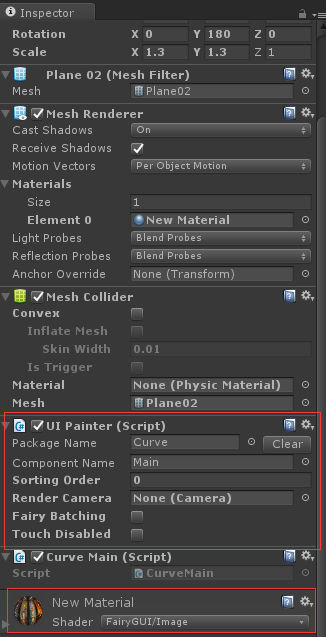
The settings of UIPainter and UIPanel are very similar. After setting "Package Name" and "Component Name", the corresponding UI can be displayed on the surface!
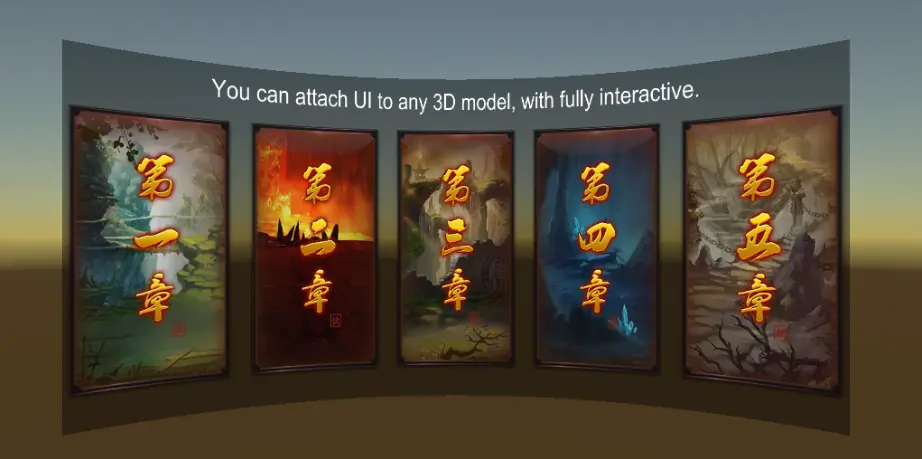
There should be a shader selected for the material. If you don't need special effects, select "FairyGUI/Image". If you need lighting and other needs, you can also choose other shaders. (If there is no material, create a new material yourself).
When using curved UI for VR, you need to pay attention to both Stage Camera and Capture Camera.NoFollow the eye movement. Generally speaking, using a higher version of the FairyGUI SDK (if using a dll version, be sure to match the version of Unity), FairyGUI will be set automatically. If display problems occur, check that the camera settings are correct.
UIPainter
-
Package NameThe package name where the UI component is located. Note that this just saves a name and does not actually reference any UI data. -
Component NameThe name of the UI component. Note that this just saves a name and does not actually reference any UI data. -
Sorting OrderAdjust the display order of UIPainter. The larger the display is, the more advanced. This order is shared with UIPanel. -
Fairy BatchingWhether to enable Fairy Batching. Please refer to Fairy BatchingHere。 Switching this value, you can see the changes of DrawCall in real time in the edit mode (click the game after switching, the content displayed in Stat will be updated), which can make it easier for you to decide whether to enable this technology. -
Touch DisabledWhen checked, click detection will be turned off. This UI can be ticked when there is no interactive content to improve the performance of click detection.
When using a curved UI, you need to capture the UI into a texture, so you need to define two layers, VUI and Hidden VUI, otherwise a warning will appear. These two layers can be freely defined to the unused layer number, but please note that the Culling Mask of all camerasNot chooseThese two layers. In addition, the Capture Camera object will automatically appear in the runtime scene. This is normal and need not be bothered.